Inside Git : How It Works and the Role of the .git Folder!
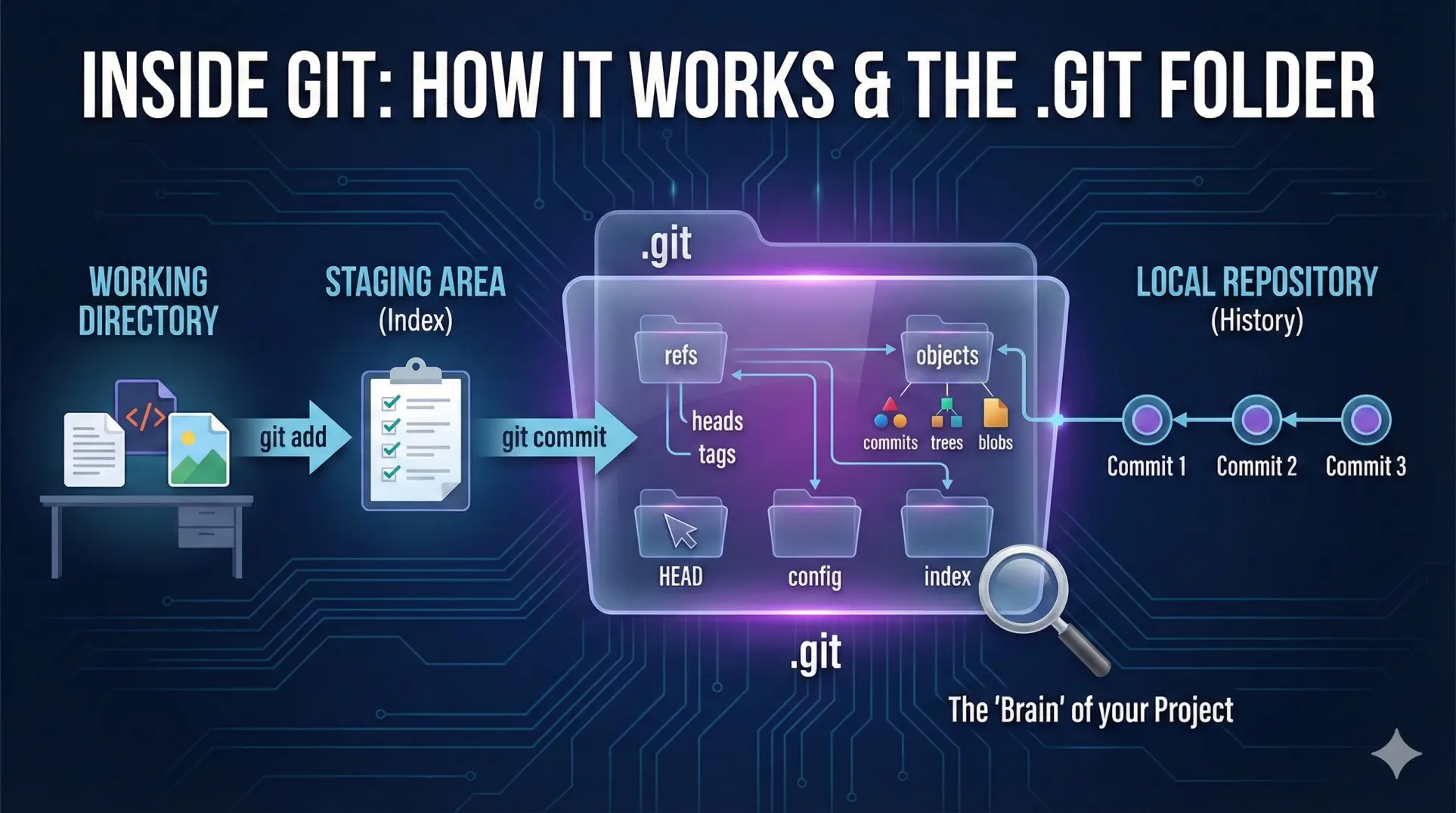
1. How Git Works Internally
Let's peek under the hood and understand what Git is actually doing when you run those commands.
At its heart, Git is surprisingly simple. It's basically a content-addressable filesystem with a version control interface on top. Don't let that fancy term scare you. It just means Git stores content (your files) and gives each piece a unique address (a hash) so it can find it later.
When you make a commit, Git doesn't save your entire project again. That would waste a lot of space. Instead, it's smart about what it stores. Git takes a snapshot of what your files look like at that moment, but if a file hasn't changed since the last commit, Git just links to the previous version instead of storing it again.
Everything in Git is identified by a hash, a long string of letters and numbers that looks like this: a3f7b2c9d8e1f4a5b6c7d8e9f0a1b2c3d4e5f6a7. This hash is created using something called SHA-1, which converts your file's content into this unique fingerprint. Think of it like a super-accurate barcode. If even one character in your file changes, you get a completely different hash.
This hash system is what makes Git so reliable. You can't accidentally corrupt a file without Git knowing about it, because the hash would no longer match. It's also how Git knows if two files are identical, same hash means same content, even if the files have different names.
2. Understanding the .git Folder
When you run git init, Git creates a hidden folder called .git in your project directory. This folder is Git's brain. It contains everything Git needs to track your project's history.
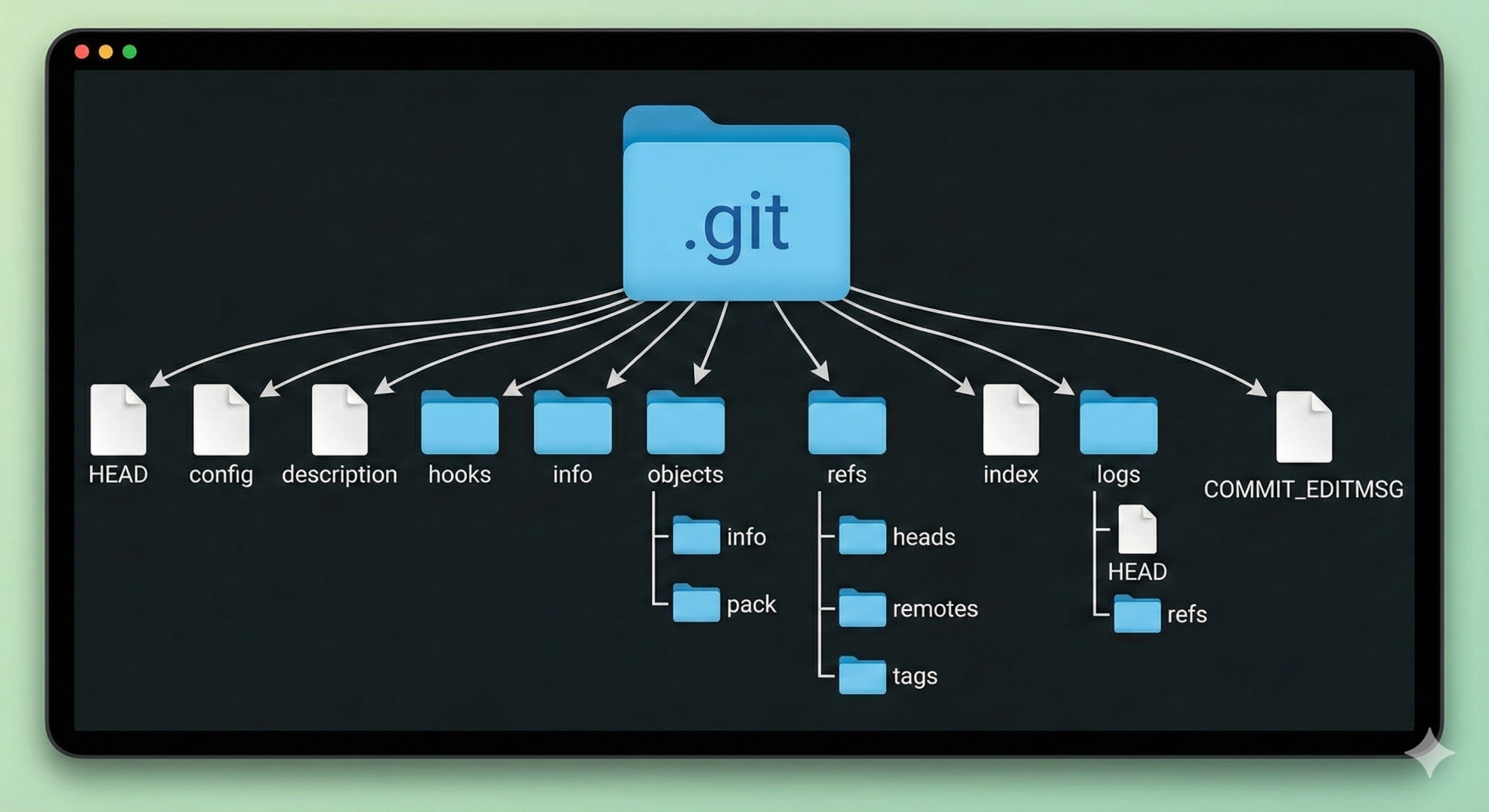
Let's look at what's inside:
The HEAD File: This is just a text file that points to your current branch. If you open it, you'll see something like ref: refs/heads/main. It's literally telling Git "you're currently on the main branch."
The config File: This stores settings specific to this repository, like what remote servers you're connected to and your branch configurations.
The objects Folder: This is where Git stores all your actual data. Every file, every commit, every version of everything. It's the most important folder in there.
The refs Folder: This contains pointers to commits. Inside, you'll find a heads folder (which stores your branches) and a tags folder (which stores tagged versions). Each branch is just a file containing a hash that points to a commit.
The index File: This is your staging area. When you run git add, Git writes information about those files here. It's a binary file that lists all the files that will go into your next commit.
The hooks Folder: Contains scripts that Git can run automatically at certain points (like before you commit or after you push). Most people don't use these when starting out.
The logs Folder: Keeps a history of where your branches and HEAD have pointed over time. This is what lets you use commands like git reflog to recover from mistakes.
You should never manually edit files inside .git unless you really know what you're doing. Git manages this folder, and messing with it can corrupt your repository. But it's totally fine to look around and explore you can't break anything just by reading.
3. Git Objects: Blob, Tree, Commit
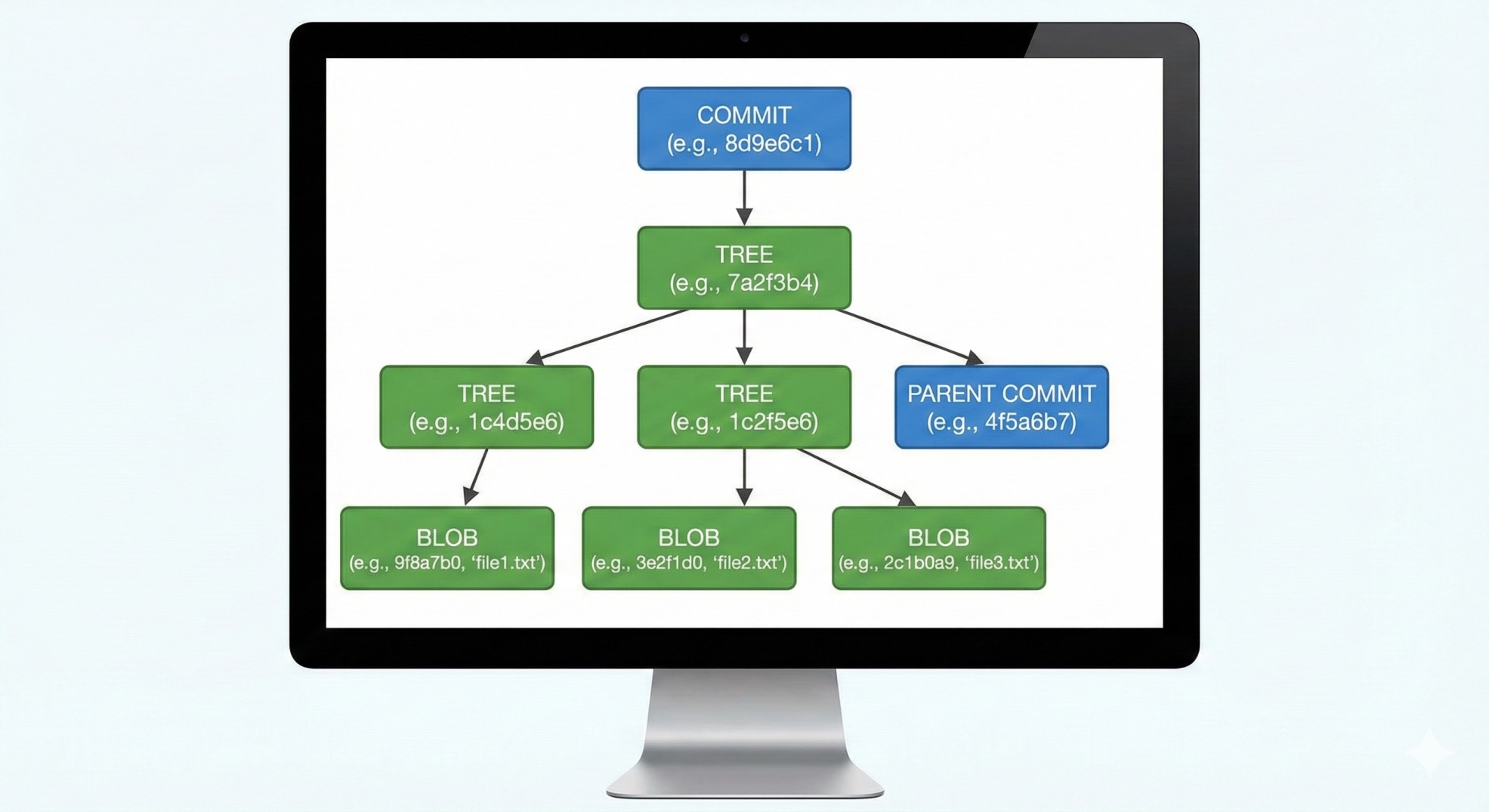
Git stores everything as objects, and there are four types, but we'll focus on the three most important ones: blobs, trees, and commits.
Blobs (Binary Large Objects): This is how Git stores file content. When you add a file to Git, it takes the content of that file, compresses it, and stores it as a blob. The blob doesn't know anything about the filename or where it is in your project, it just stores the raw content. Each blob gets a unique hash based on its content.
Let's say you have a file called hello.txt with the content "Hello World". Git compresses this content and saves it in .git/objects. The filename in the objects folder is based on the hash of the content. If you create another file greeting.txt with the exact same content "Hello World", Git doesn't store it twice, both files point to the same blob because the content is identical.
Trees: Think of trees as folders. A tree object lists the contents of a directory. It contains pointers to blobs (files) and other trees (subdirectories), along with their names and permissions.
For example, if your project looks like this:
my-project/
  README.md
  src/
    app.js
    utils.js
Git creates a tree for the root directory that points to the README.md blob and another tree for the src folder. The src tree then points to the app.js and utils.js blobs. Trees are how Git remembers your project's structure.
Commits: A commit object ties everything together. It contains:
A pointer to a tree (the snapshot of your project at that moment)
Pointers to parent commits (the commits that came before)
Author and committer information (name, email, timestamp)
The commit message you wrote
So when you make a commit, Git creates a commit object that points to a tree, which points to other trees and blobs. It's like a chain where each commit knows about the complete state of your project and which commit came before it.
Here's the beautiful part: commits are also stored as objects with hashes. That long string you see when you commit (like a3f7b2c) is just the shortened version of the commit's hash.
4. How Git Tracks Changes
Now let's put it all together and see what actually happens when you use Git.
When you create or modify a file: Nothing happens in Git yet. The file exists in your working directory, but Git isn't paying attention to it.
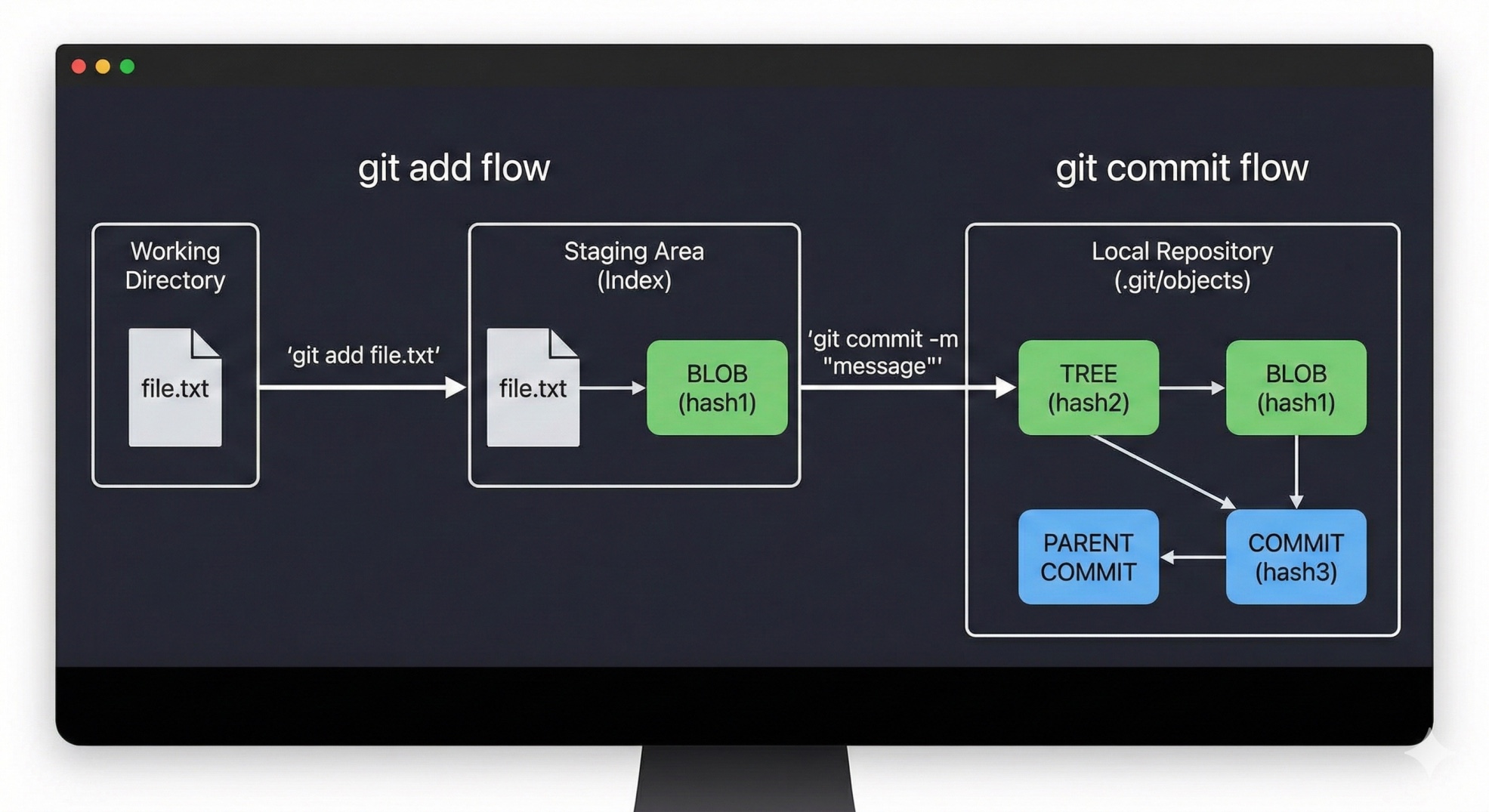
When you run git add: This is where Git springs into action. Git takes the current content of your file, compresses it, creates a blob object, and stores it in .git/objects. Then it updates the staging area (the index file) to say "the next commit should include this file with this blob hash."
Here's something interesting: the blob is already stored in Git's database as soon as you run git add. Even if you haven't committed yet, that version of the file is safely stored. This is why you can unstage a file but not lose the changes, The blob is still there.
When you run git commit: Git looks at the staging area to see what files you want to commit. It then:
Creates tree objects representing your project's directory structure
Creates a commit object that points to the root tree
Adds your commit message and metadata (author, date, parent commits)
Gives the commit object a hash
Updates the current branch to point to this new commit
Moves HEAD to point to this new commit
Let's walk through a real example:
bash
echo "Hello World" > hello.txt
git add hello.txt
Git compresses "Hello World" and stores it as a blob. Let's say the hash is 557db03. This blob is now in .git/objects/55/7db03....
bash
git commit -m "Add hello.txt"
Git creates a tree object that says "this directory contains hello.txt which points to blob 557db03". Let's say this tree's hash is a1b2c3d. Git then creates a commit object that points to tree a1b2c3d, contains your commit message, and has no parent (because it's the first commit). This commit gets its own hash, maybe e4f5g6h.
Now your branch (let's say main) is updated to point to commit e4f5g6h.
When you modify and commit again:
bash
echo "Hello Beautiful World" > hello.txt
git add hello.txt
git commit -m "Update greeting"
Git creates a new blob for the updated content (different content means different hash, let's say 6a7b8c9). It creates a new tree pointing to this new blob. It creates a new commit that points to this new tree, but this time the commit has a parent it points back to e4f5g6h. The new commit gets hash i9j0k1l, and main now points to this newest commit.
How Git knows what changed: When you run git status, Git compares three things:
The files in your working directory
The files in the staging area (index)
The files in the last commit (HEAD)
If a file in your working directory is different from the staging area, Git shows it as "modified but not staged." If a file in the staging area is different from HEAD, Git shows it as "staged for commit."
Git doesn't store the differences between versions. It stores complete snapshots. But when you run git diff, Git compares the blobs and shows you what changed. This is fast because Git just needs to compare two hashes to know if files are identical.
How branches work internally: A branch is just a file containing a commit hash. That's it. When you create a branch with git branch feature, Git creates a file at .git/refs/heads/feature that contains the current commit hash. When you commit on that branch, Git just updates that file with the new commit hash.
Switching branches (with git checkout or git switch) just updates HEAD to point to a different branch file, then updates your working directory to match that commit's tree.
Why this design is brilliant: Because everything is content-addressed by hash, Git can:
Quickly check if two files are identical (just compare hashes)
Verify data integrity (if the hash matches, the content is definitely correct)
Share objects between branches (if two branches have the same file, it's stored once)
Efficiently store history (unchanged files are just links to existing blobs)
This is why Git can manage huge projects with thousands of commits without slowing down. It's also why you can branch and merge so easily. Git isn't copying files around, it's just creating new commit objects that point to existing trees and blobs.
Understanding this mental model helps you realize that Git commands aren't magic. git commit creates objects. git branchcreates a reference. git merge creates a commit with two parents. Once you see that it's all just objects and pointers, Git becomes much less mysterious and much more predictable.


