Understanding Git : A Comprehensive Guide!
1. What is Git?
Git is a distributed version control system that tracks changes in your code over time. Think of it as a complex "undo" system with superpowers. It records every change you make to your files, who made them, and when they happened.
Unlike saving multiple copies of files (hello.txt, feature.txt), Git efficiently stores snapshots of your entire project at different points in time. You can travel back to any previous version, compare changes, or work on experimental features without risking your stable code.
2. Why Git is Used
Git solves several critical problems in software development:
Version History: Every change is recorded with a message explaining what was done and why. If something breaks, you can identify exactly when and where the problem was introduced.
Collaboration: Multiple developers can work on the same project simultaneously without overwriting each other's work. Git intelligently merges changes from different people.
Backup and Recovery: Your code is distributed across multiple computers. If your laptop crashes, the entire project history exists on your teammates' machines and remote servers.
Experimentation: You can create isolated "branches" to try new features without affecting the main codebase. If the experiment fails, you simply delete the branch. If it succeeds, you merge it back.
Code Review: Teams can review changes before they're added to the main codebase, catching bugs and maintaining code quality.
3. Git Basics and Core Terminologies
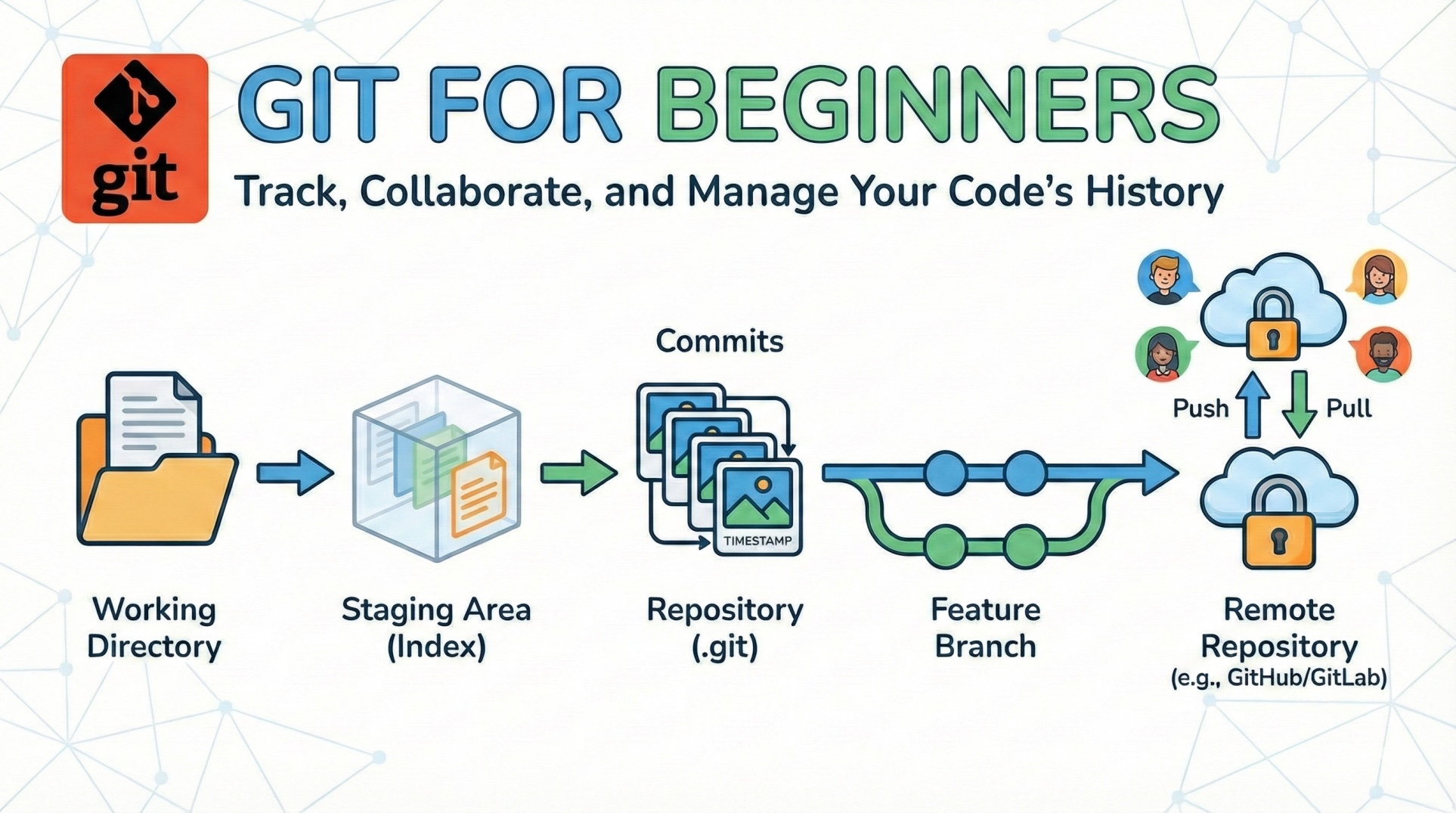
Repository (Repo): A folder that Git is tracking. It contains all your project files plus a hidden .git folder where Git stores its history and configuration.
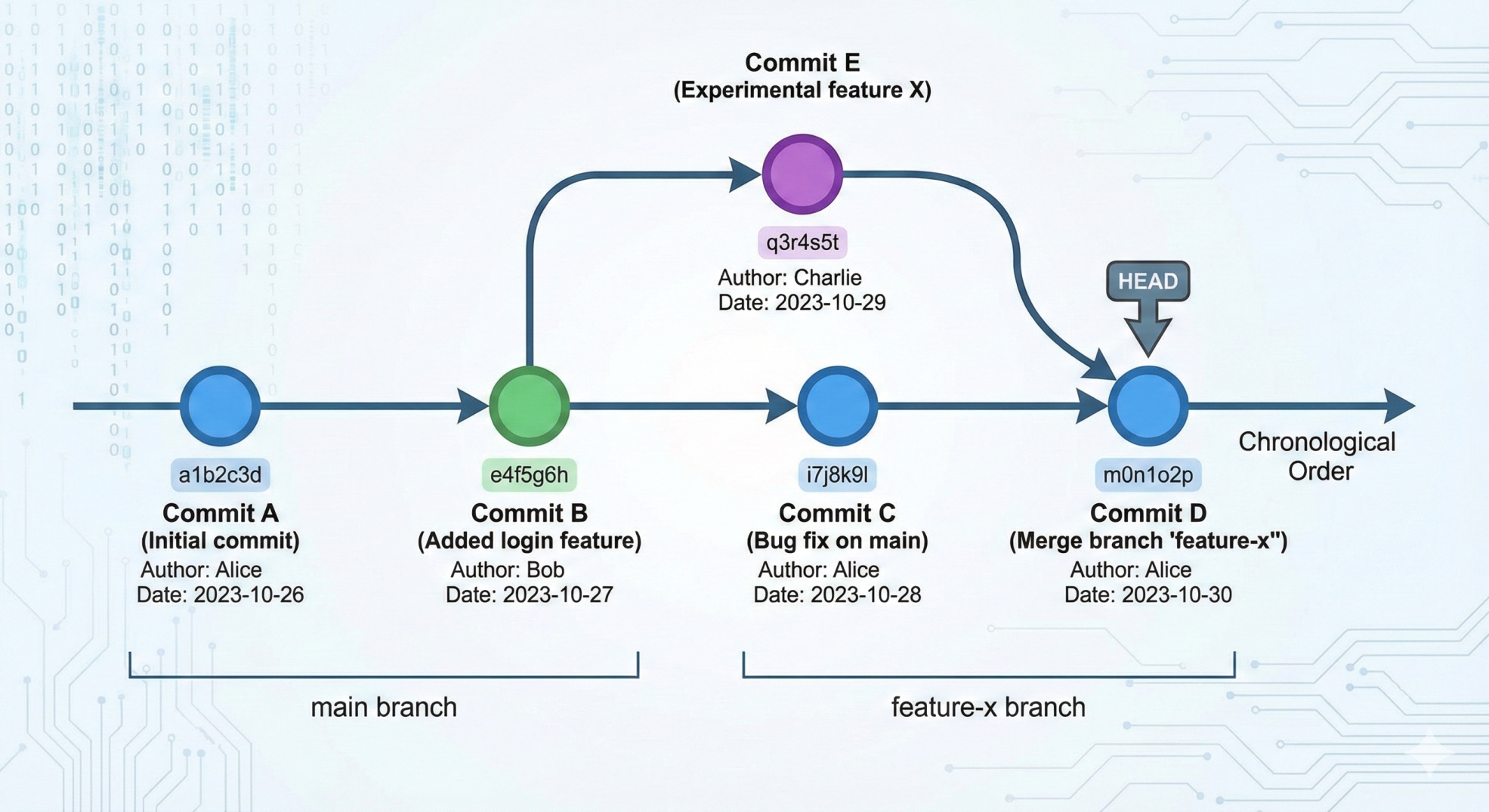
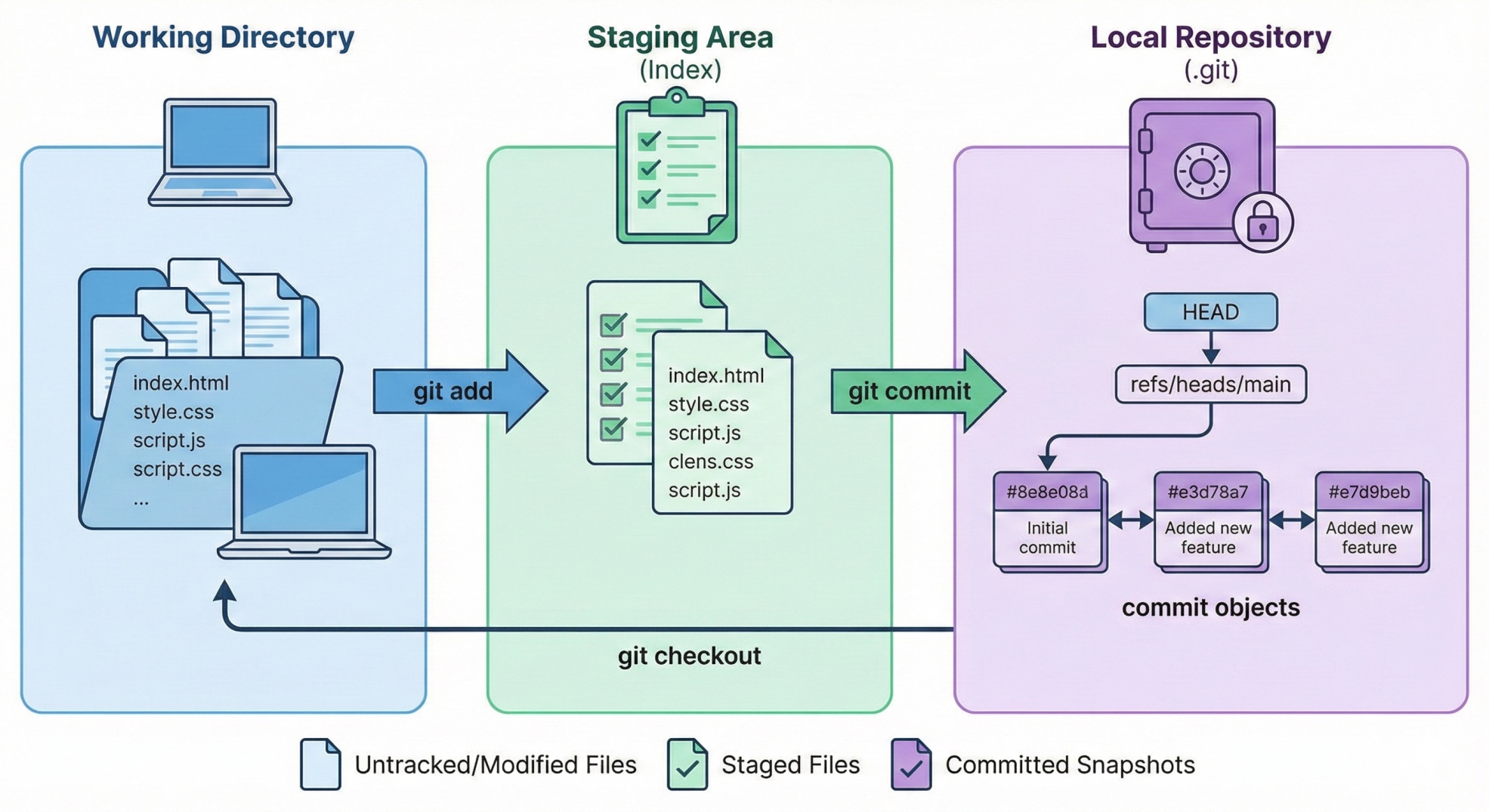
Commit: A snapshot of your project at a specific moment. Each commit has a unique ID, a message describing the changes, and records who made the changes and when. Commits are the building blocks of your project's history.
Branch: An independent line of development. The default branch is usually called main or master. Branches let you work on different features simultaneously without interference.
HEAD: A pointer to your current location in the Git history. It typically points to the latest commit on your current branch.
Working Directory: The actual files you see and edit on your computer.
Staging Area (Index): A holding area where you prepare changes before committing them. This lets you carefully choose which changes to include in each commit.
Remote: A version of your repository hosted on a server (like GitHub, GitLab, or Bitbucket). Remotes enable collaboration and backup.
Clone: Creating a complete copy of a repository, including all history, on your local machine.
Pull: Downloading changes from a remote repository and merging them into your local branch.
Push: Uploading your local commits to a remote repository so others can access them.
Merge: Combining changes from different branches into one branch.
Conflict: Occurs when Git can't automatically merge changes because two people edited the same lines of code differently.
4. Common Git Commands
Initial Setup
bash
# Configure your identity (do this once per computer)
git config --global user.name "Your Name"
git config --global user.email "your.email@example.com"

# Check your configuration
git config --list
Starting a Repository
bash
# Create a new repository in the current folder
git init

# Clone an existing repository
git clone https://github.com/username/repository.git
Checking Status
bash
# See which files have changed and the current branch
git status
Staging and Committing Changes
bash
# Stage a specific file
git add filename.txt

# Stage all changed files
git add .

# Commit staged changes with a message
git commit -m "Add user login feature"

# Stage and commit in one step (for tracked files only)
git commit -am "Fix typo in readme"
Viewing History
bash
# See commit history
git log

# Compact one-line view
git log --oneline

# See changes in commits
git log -p

# Graphical view of branches
git log --graph --oneline --all
Working with Branches
bash
# List all branches
git branch

# Create a new branch
git branch feature-name

# Switch to a branch
git checkout feature-name

# Create and switch in one command
git checkout -b feature-name

# Modern alternative to checkout (Git 2.23+)
git switch feature-name
git switch -c new-feature-name

# Merge another branch into current branch
git merge feature-name

# Delete a branch
git branch -d feature-name
Remote Operations
bash
# View remote repositories
git remote -v

# Add a remote repository
git remote add origin https://github.com/username/repo.git

# Download changes from remote (doesn't merge)
git fetch

# Download and merge changes
git pull

# Upload commits to remote
git push

# Push and set upstream branch
git push -u origin main
Undoing Changes
bash
# Discard changes in working directory
git checkout -- filename.txt

# Unstage a file (keep changes in working directory)
git reset filename.txt

# Undo last commit but keep changes
git reset --soft HEAD~1

# Undo last commit and discard changes (careful!)
git reset --hard HEAD~1

# Create a new commit that undoes a previous commit
git revert commit-hash
Viewing Differences
bash
# See unstaged changes
git diff

# See staged changes
git diff --staged

# Compare branches
git diff branch1 branch2